Markdown Guides
August 18, 2026
By Antoine Frankart
Markdown Blockquotes: Syntax, Nesting, and Callouts
Markdown blockquotes let you isolate someone's words, an excerpt from a book, or a passage from another source. They can contain a single sentence, several paragraphs, or even lists and code blocks.
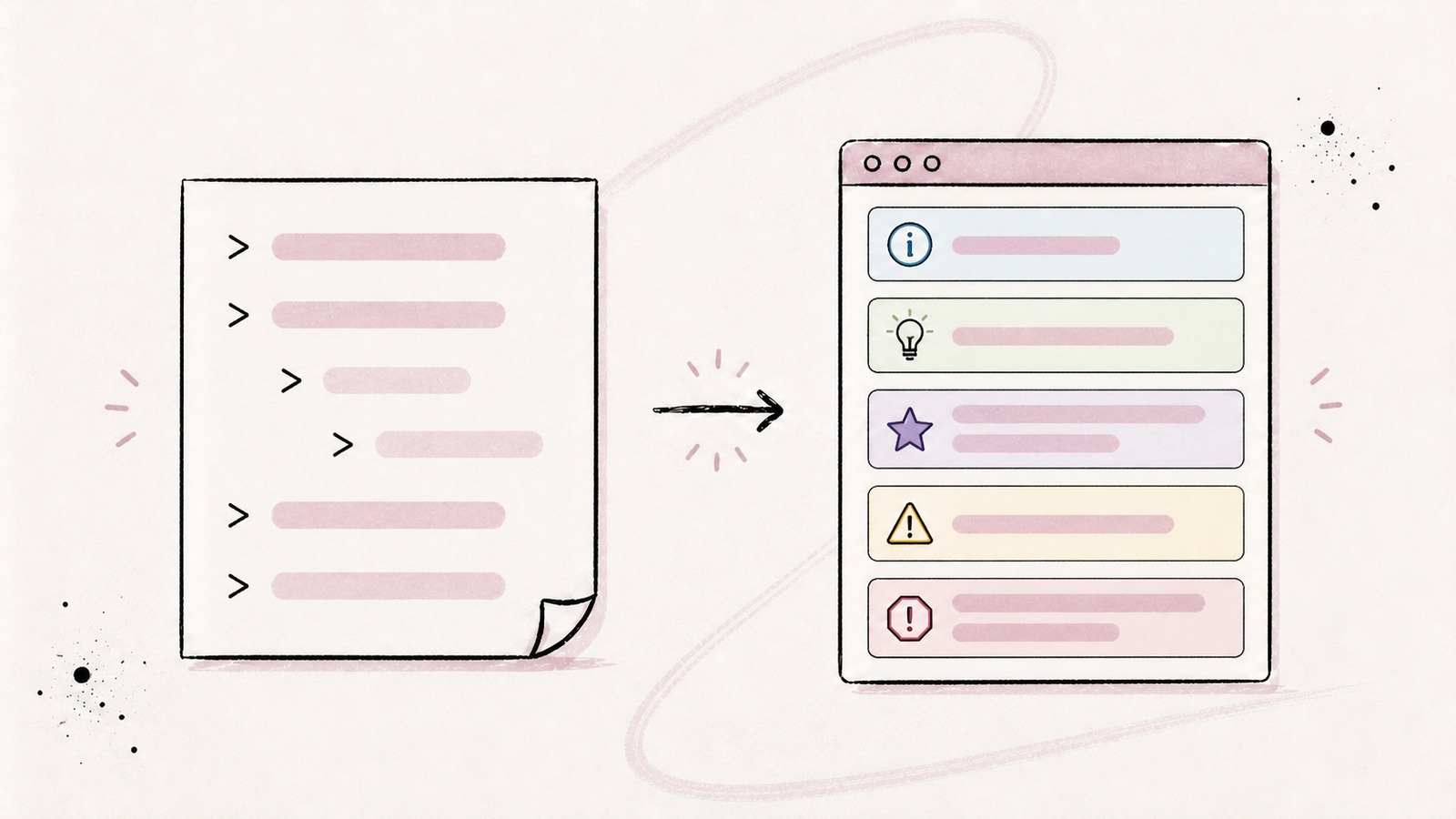
GitHub, Obsidian, and Fude also use blockquotes to display callouts: boxes that identify a note, tip, important detail, or warning. Both elements rely on the > symbol, but they serve different purposes. A blockquote reproduces content from a source; a callout draws attention to information in your own document.
In this guide, I will first explain how to create a blockquote, extend it across several lines, attribute its source, and nest it. We will then create a callout and choose among the five most portable types. Once both forms are familiar, we can decide which one to use before moving on to custom titles, rich content, and the differences between GitHub, Obsidian, and Fude.
In this article, “blockquote” means the Markdown container used for quoted passages. It does not refer to bibliographies, footnotes, or academic citation styles.
If .md files are still new to you, start with my guide What Is a Markdown File (.md) and How Do You Open It?.
1. Create a simple Markdown blockquote
Place a > symbol and a space at the beginning of the line:
> Good documentation answers the question before it is asked.Rendered:
Good documentation answers the question before it is asked.
The space after the symbol is recommended. Some parsers also understand >A quotation, but > A quotation remains more readable and portable.
The > symbol is not a decorative quotation mark. It turns the paragraph into a block quote. A Markdown reader can then display it with a border, indentation, a background color, or a combination of these styles.
Add several lines
Prefix each line with >:
> A quotation can continue
> across several lines in the source
> and form a single paragraph when rendered.
Rendered:
A quotation can continue across several lines in the source and form a single paragraph when rendered.
CommonMark sometimes allows a continuation line without the > symbol. This form therefore works in many readers:
> The first fragment begins the quotation,
and the second can still belong to it.
I do not recommend this implicit form. Adding > to every line immediately shows where the quotation begins and ends, especially in a Git diff or an editor without a preview.
End the blockquote
Leave a blank line before returning to normal text:
> Here is the quotation.

Here is the next paragraph.
This separation is not always required by the parser, but it prevents a later edit from accidentally attaching the paragraph to the blockquote.
2. Write several paragraphs inside a blockquote
A blockquote can contain several paragraphs. Keep the marker on the blank line that separates them:
> The first paragraph introduces the main idea.
>
> The second adds a detail or develops the argument.
Rendered:
The first paragraph introduces the main idea.
The second adds a detail or develops the argument.
A line containing only > means: “the blockquote continues, but a new paragraph begins.” It makes the structure more explicit than a completely blank line.
You can apply the same rule to a longer quotation:
> First paragraph.
>
> Second paragraph.
>
> Third paragraph.
A blockquote is not a good way to indent several pages of text. If you control the document, summarize long passages and keep only the excerpt you need. The file will remain easier to read, with or without rendered output.
3. Add the author and source of a quotation
Markdown has no standard syntax that automatically identifies the author, book, or page of a quotation. You must write the attribution as part of the content.
The simplest form places the source on a final line:
> Reading is a friendship.
>
> — Marcel Proust
Rendered:
Reading is a friendship.
— Marcel Proust
You can add a link when the source is available online:
> An excerpt quoted in the document.
>
> — [Author's name](https://example.com/source), *Title of the source*
For a more discreet attribution, place it after the block:
> An excerpt quoted in the document.

— Author's name, *Title of the source*
Both presentations are valid. An attribution inside the block visually groups the excerpt and its source. An attribution outside the block distinguishes the quoted words more clearly from your own bibliographic information.
I prefer the second form for a formal quotation because it avoids suggesting that the author's name is part of the original text. For a short epigraph or a highlighted sentence, the first form often looks more elegant.
In either case, do not rely on formatting to replace a real reference. If the origin matters, provide enough information to find it again: author, title, link, date, or page number, depending on the context.
4. Nest blockquotes
Add a second > symbol to create a blockquote inside the first:
> First level of quotation.
>
> > Second level, quoted inside the first.
>
> Back to the first level.
Rendered:
First level of quotation.
Second level, quoted inside the first.
Back to the first level.
Each additional symbol adds another level:
> Level 1
>> Level 2
>>> Level 3
Spaces between the symbols are not always required, but this version is easier to read:
> Level 1
> > Level 2
> > > Level 3
Nesting is useful for reproducing a discussion, a reply in an email, or a source that contains an excerpt of its own. It quickly becomes difficult to follow beyond two levels. If the hierarchy belongs to your own document, headings or a nested list usually express the structure more clearly.
5. Add Markdown inside a blockquote
A blockquote can contain more than a paragraph. The CommonMark specification defines it as a container block, so Markdown markers continue to work after the > symbol.
Format the text
> This decision is **important**, but this option remains *optional*.
>
> Also read the [documentation](https://example.com).
Rendered:
This decision is important, but this option remains optional.
Also read the documentation.
You can find the rules for bold, italic, and other styles in Bold, Italic, Strikethrough, and Underline in Markdown.
Add a list
Prefix the list lines as well:
> Three points to remember:
>
> - a blockquote has a specific meaning;
> - it can contain several blocks;
> - its indentation should remain readable.
Rendered:
Three points to remember:
- a blockquote has a specific meaning;
- it can contain several blocks;
- its indentation should remain readable.
Add code
Inline code works normally:
> The `pnpm test` command runs the project's tests.For a fenced code block, place the > symbol in front of every line, including the fences:
> Example configuration:
>
> ```json
> {
>   "theme": "dark"
> }
> ```
Rendered:
Example configuration:
{
  "theme": "dark"
}
The triple backticks protect the contents of the block: asterisks, brackets, and > symbols inside it are displayed literally instead of being interpreted as Markdown.
6. Create your first callout
A callout is a box that identifies the purpose of a piece of information: a note, tip, essential point, or warning. Its syntax begins like a blockquote and adds a marker in brackets:
> [!TYPE]
> Callout content.
For example:
> [!TIP]
> Keep callouts short so their importance remains visible.
Rendered in Fude:
Keep callouts short so their importance remains visible.
Callouts are not part of the CommonMark core. They are an extension adopted by tools including GitHub, Obsidian, and Fude. In a reader that does not recognize the extension, the content generally remains readable as an ordinary blockquote, with [!TIP] visible on the first line.
The marker must appear at the beginning of the block. This source does not create a callout:
> An introduction before the marker.
> [!TIP]
> The tip appears too late.
Rendered in Fude:
An introduction before the marker. [!TIP] The tip appears too late.
The block remains an ordinary blockquote because [!TIP] is not its first content.
7. Choose among the five portable callout types
GitHub defines five alert types. Fude supports all of them, and Obsidian recognizes them as well:
| Marker | Label shown by Fude in English | Recommended use |
|---|---|---|
[!NOTE] |
Note | Context, clarification, or additional information |
[!TIP] |
Tip | Best practice, shortcut, or more efficient method |
[!IMPORTANT] |
Important | Information that is essential for completing a step |
[!WARNING] |
Warning | Likely risk or an action that requires attention |
[!CAUTION] |
Caution | Serious consequence, data loss, or an action that is difficult to undo |
Note
> [!NOTE]
> The file remains readable in a text editor without a Markdown preview.The file remains readable in a text editor without a Markdown preview.
Tip
> [!TIP]
> Use one callout to group several closely related tips.Use one callout to group several closely related tips.
Important
> [!IMPORTANT]
> Save the file before closing your editor.Save the file before closing your editor.
Warning
> [!WARNING]
> A Markdown extension can produce different output in another reader.A Markdown extension can produce different output in another reader.
Caution
> [!CAUTION]
> Deleting the only copy of a file causes data loss.Deleting the only copy of a file causes data loss.
The five keywords remain in English in the source. Fude automatically translates their visible labels according to the interface language: [!TIP], for example, becomes “Conseil” in French. You do not need to translate the marker itself.
Callout types are case-insensitive in Fude: [!note], [!Note], and [!NOTE] produce the same callout. I still recommend uppercase letters because they match GitHub's documented syntax and make the marker easier to spot.
8. Choose between a blockquote and a callout
Now that both forms are clear, the right choice depends on the content's origin and purpose.
| Goal | Syntax | Recommended element |
|---|---|---|
| Reproduce the words of a person or source | > Quoted text |
Blockquote |
| Set apart an excerpt from another document | > Excerpt |
Blockquote |
| Add useful context | > [!NOTE] |
Note callout |
| Give practical advice | > [!TIP] |
Tip callout |
| Highlight essential information | > [!IMPORTANT] |
Important callout |
| Warn about a risk | > [!WARNING] or > [!CAUTION] |
Warning callout |
I use a blockquote when the content comes from somewhere else or should be read as an excerpt. I use a callout when the document keeps speaking in its own voice but a piece of information deserves special visual treatment.
The distinction is semantic as well. Placing a sentence in a blockquote indicates that it can be attributed to a source. Placing an instruction in an IMPORTANT callout identifies its role in the reading flow instead.
9. Add a custom title
In Fude, add the title after the marker:
> [!TIP] Review the source before publishing
> A successful preview does not guarantee that the file remains easy to edit.
Rendered:
A successful preview does not guarantee that the file remains easy to edit.
The space between ] and the title is required:
> [!TIP] Valid title
> This block becomes a callout.

> [!TIP]Invalid title
> This block remains an ordinary blockquote.
Rendered in Fude:
This block becomes a callout.
[!TIP]Invalid title This block remains an ordinary blockquote.
In Fude, the second block remains an ordinary blockquote. This behavior prevents text that merely resembles the marker from being transformed accidentally.
A custom title can contain inline Markdown:
> [!IMPORTANT] Check **before** `git commit` with the [checklist](https://example.com/checklist)
> Review every item before publishing.
Rendered in Fude:
Review every item before publishing.
Fude interprets bold text, inline code, and links inside the title. Keep titles short, however: the label should guide the eye rather than replace the callout's content.
Obsidian also supports custom titles, but GitHub's alert syntax does not document them. If the same file must retain consistent output across all three tools, keep only the marker on the first line and place your heading in bold within the content:
> [!TIP]
> **Review the source before publishing**
>
> A successful preview does not guarantee that the file remains easy to edit.
Rendered in Fude:
Review the source before publishing
A successful preview does not guarantee that the file remains easy to edit.
10. Put rich content inside a callout
A Fude callout can contain several paragraphs, lists, links, a table, or a code block. The rule is the same as for a blockquote: each line belongs to the block through its > symbol.
Several paragraphs and a list
> [!IMPORTANT] Before publishing
> Check the document's content first.
>
> - review the headings;
> - test the links;
> - check the code blocks.
>
> Publish only after completing all three checks.
Rendered in Fude:
Check the document's content first.
- review the headings;
- test the links;
- check the code blocks.
Publish only after completing all three checks.
A table
> [!NOTE] Compatibility
>
> | Element | Support |
> | --- | --- |
> | Blockquote | Standard Markdown |
> | Callout | Extension |
Rendered in Fude:
| Element | Support |
|---|---|
| Blockquote | Standard Markdown |
| Callout | Extension |
A code block
> [!TIP] Verification command
> Run the tests before publishing:
>
> ```bash
> pnpm test
> ```
Rendered in Fude:
Run the tests before publishing:
pnpm testA Mermaid diagram in Fude
Fude can also render a Mermaid block inside a callout:
> [!NOTE] Review flow
>
> ```mermaid
> flowchart LR
>   A[Draft] --> B[Review]
>   B --> C[Publish]
> ```
Rendered in Fude:
This combination depends on the reader. The callout and Mermaid are two separate extensions: a tool may recognize one without supporting the other. For a highly portable document, accompany the diagram with a sentence that summarizes its meaning.
11. Use a blockquote or callout inside a list
A blockquote placed inside a list item must be indented like the rest of that item's content:
1. Read the recommendation.

    > Always verify the source before sharing a quotation.

2. Apply the recommendation.
Rendered:
-
Read the recommendation.
Always verify the source before sharing a quotation.
-
Apply the recommendation.
The same principle applies to a callout:
- Prepare the release.

    > [!WARNING]
    > Relative links may change after the file is moved.

- Check the final output.
Rendered in Fude:
-
Prepare the release.
WarningRelative links may change after the file is moved.
-
Check the final output.
In Fude, this callout is recognized even though it belongs to a list. The block is nested in a list item, not in another blockquote.
Fude does not, however, transform a marker placed inside an already nested blockquote:
> Main quotation.
>
> > [!TIP]
> > This block remains an ordinary nested blockquote in Fude.
Rendered in Fude:
Main quotation.
[!TIP] This block remains an ordinary nested blockquote in Fude.
This restriction prevents a quoted source that happens to contain [!TIP] from changing its nature. If you need a callout, move it outside the parent blockquote.
Inside a Fude Kanban board
A callout can appear in the detailed content of a Kanban card opened in Fude:
```kanban-board
## To review

- [ ] Open this card

  > [!IMPORTANT] Pre-publish check
  > This callout appears in the card details.
```
Rendered in Fude — open the card to display the callout:
## To review

- [ ] Open this card

  > [!IMPORTANT] Pre-publish check
  > This callout appears in the card details.
12. Compare GitHub, Obsidian, and Fude
All three tools understand ordinary Markdown blockquotes. Their differences appear with callouts.
On GitHub
GitHub calls this feature “alerts.” Its Markdown syntax documentation describes five types: NOTE, TIP, IMPORTANT, WARNING, and CAUTION.
GitHub recommends reserving alerts for crucial information, using no more than one or two per article, and avoiding consecutive alerts. GitHub alerts cannot be nested inside other elements.
In Obsidian
Obsidian callouts use the same principle but add more variations: custom titles, collapsible callouts, nesting, and additional types such as abstract, question, and example.
These options are useful inside an Obsidian vault, but they are not all portable. A marker recognized by Obsidian may remain an ordinary blockquote in GitHub or Fude.
In Fude
Fude supports the five types shared by GitHub and Obsidian. Every callout has an icon, a tone, and a visible label, so its meaning does not depend on color alone. The generated label follows the interface language.
Fude also supports custom titles, rich content, and callouts placed inside lists. Callouts nested inside another blockquote deliberately remain ordinary blockquotes.
You can paste every example from this article into the free Markdown reader on Fude.md to check its rendered output immediately.
13. Keep callouts portable and useful
A visible callout attracts attention. Ten callouts on the same page have the opposite effect: nothing seems important anymore.
These are the rules I use:
- reserve blockquotes for excerpts and attributed words;
- reserve callouts for information that truly changes the reader's understanding or next action;
- choose one of the five shared types when a file moves between several tools;
- do not communicate information through color alone;
- write content that remains understandable if the callout becomes an ordinary blockquote;
- avoid consecutive callouts when normal paragraphs would be enough;
- keep the title short and give each box a single purpose.
My rule is simple: if the reader needs to stop or change their behavior, a callout may be justified. If you only want to make the page look less monotonous, add a heading, shorten the paragraph, or improve its structure instead.
For the best compatibility across GitHub, Obsidian, and Fude, use this minimal form:
> [!NOTE]
> Short, self-contained content that remains understandable without color.
It uses one of the five shared markers without a custom title, collapsing behavior, or a type specific to one tool.
14. Troubleshoot common problems
“My > symbol remains visible as text”
Check that it appears at the beginning of the line and is separated from the content by a space:
> Valid blockquote
Text > that does not create a blockquote
Also make sure you are looking at the preview. A source editor naturally displays the > character.
“My blockquote stops after the first paragraph”
The blank line probably interrupted the block. Prefix it with >:
> First paragraph.
>
> Second paragraph.
“My nested blockquote remains at the first level”
Each level needs its own > symbol:
> First level
> > Second level
Also check the markers on blank lines, and avoid mixing approximate indentation with several writing styles.
“My callout appears as an ordinary blockquote”
Check these four points:
- the
[!TYPE]marker is the first content in the block; - the type is one of the five recognized values;
- the brackets, exclamation mark, and name are complete;
- the reader supports callouts.
This source is valid:
> [!WARNING]
> Warning content.
“The custom title does not work in Fude”
Add at least one ASCII space between the closing bracket and the title:
> [!TIP] Recognized titleWithout that space, Fude keeps the block as an ordinary blockquote:
> [!TIP]Unrecognized title“[!ADVICE] is not recognized”
Use one of the five supported keywords. Write [!TIP] for practical advice rather than inventing another marker.
“My type works in Obsidian, but not elsewhere”
Obsidian supports more types than GitHub and Fude. Replace the marker with one of the five shared types: NOTE, TIP, IMPORTANT, WARNING, or CAUTION.
“My nested callout remains a blockquote in Fude”
This is expected behavior. Fude recognizes a callout in the document or inside a list, but not inside another blockquote. Move the block outside its parent quotation.
“The content escapes the callout”
A line has probably lost its > symbol. Prefix every paragraph, list item, and code-fence line with >:
> [!NOTE]
> First paragraph.
>
> ```text
> Code block content
> ```
15. Copy this cheat sheet
# Simple blockquote
> A one-line quotation.

# Blockquote across several lines
> A quotation can continue
> across several lines in the source.

# Several paragraphs
> First paragraph.
>
> Second paragraph.

# Attribution inside the block
> Quoted text.
>
> — Author's name, *Title of the source*

# Nested blockquote
> First level
> > Second level

# List inside a blockquote
> Points to remember:
>
> - first point;
> - second point.

# Code block inside a blockquote
> Example:
>
> ```bash
> pnpm test
> ```

# The five portable callouts
> [!NOTE]
> Additional information.

> [!TIP]
> Practical advice.

> [!IMPORTANT]
> Essential information.

> [!WARNING]
> A risk that requires attention.

> [!CAUTION]
> A serious consequence or an action that is difficult to undo.

# Custom title in Fude and Obsidian
> [!TIP] A short title
> The tip's content.

# Callout with several blocks
> [!IMPORTANT] Before publishing
> First paragraph.
>
> - review the text;
> - test the links;
> - check the rendered output.
Markdown blockquotes and callouts start in the same way, but they do not communicate the same thing. > identifies an excerpt or a quoted voice. > [!TYPE] identifies the role of information written by the document's author.
For a clear blockquote, place a > symbol in front of every line, keep it on blank lines, and attribute the source explicitly. For a portable callout, choose NOTE, TIP, IMPORTANT, WARNING, or CAUTION, then write content that remains understandable in a reader that does not recognize the extension.
To continue learning, read the guides to text formatting, Markdown lists, links, and tables.
To test a blockquote or callout without creating a file, paste its source into the free Markdown reader on Fude.md.