Markdown Guides
August 18, 2026
By Antoine Frankart
How to Preview Mermaid Diagrams in Markdown Online
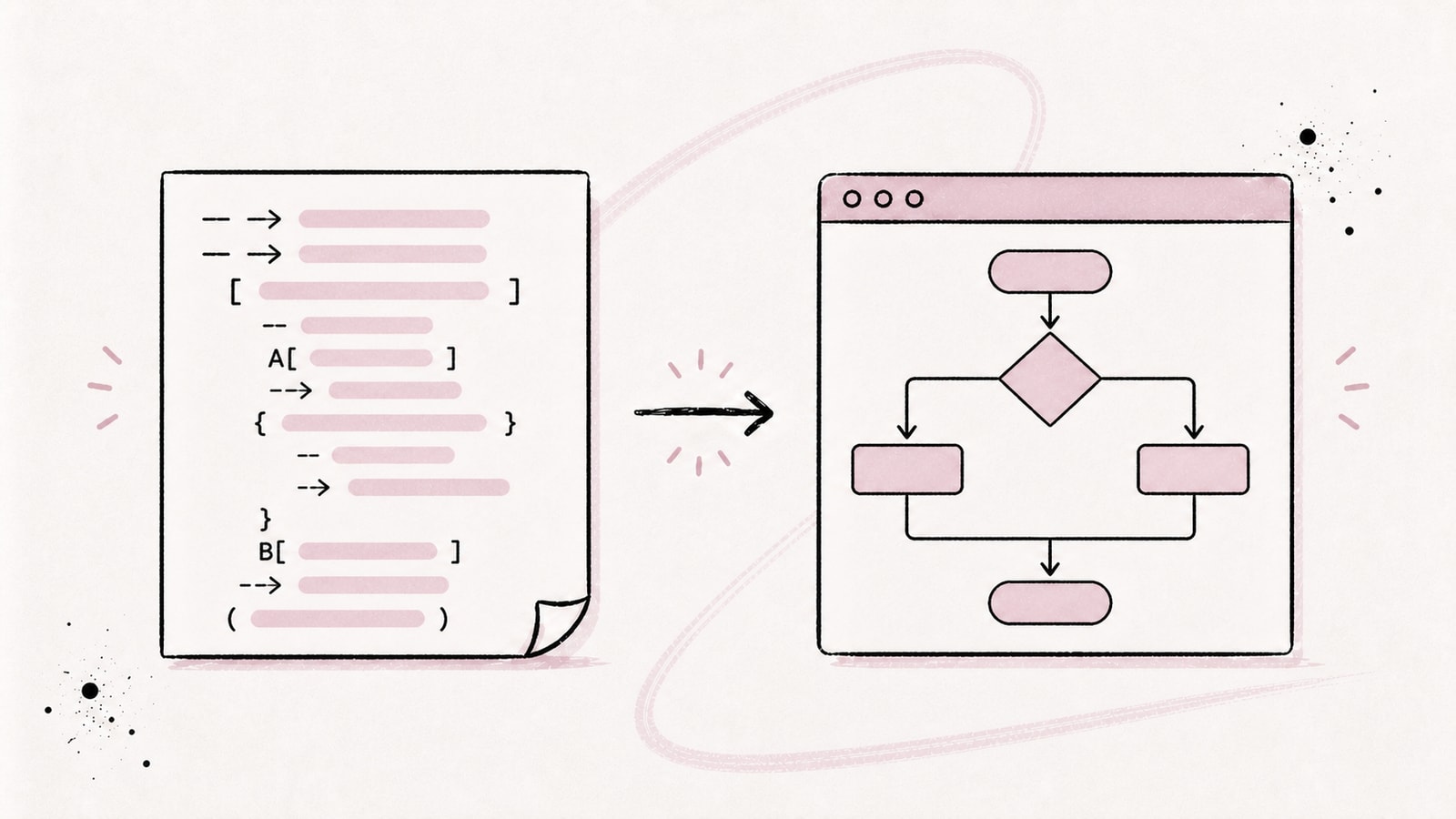
Already have a Mermaid diagram in a README or Markdown file and want to check the result before publishing? Fude's free Markdown viewer shows the source and rendered diagram side by side, directly in your browser.
Mermaid turns text syntax into a diagram embedded in Markdown. This guide shows you how to add a Mermaid code block, preview it with the Fude sample, test the main diagram types, and fix common rendering errors.
The shortest valid Mermaid block in Markdown
Mermaid source belongs in a code block marked as mermaid:
```mermaid
flowchart LR
  Draft --> Review
  Review --> Publish
```
The three backticks open and close the code block. The word mermaid tells a compatible viewer to interpret the content as a diagram instead of displaying it as ordinary code.
The first line inside the block identifies the diagram type. In this example:
flowchartselects a flowchart;LRlays it out from left to right;Draft --> Reviewcreates two nodes and a directed connection.
If the language label is missing, a standard Markdown renderer will correctly show a code block, but it will not know that it should create a diagram.
Preview a Mermaid diagram with Fude
The free Fude Markdown viewer uses the same rendering pipeline as the desktop reader and runs it locally in your browser.
- Open the viewer and choose Mermaid sample.
- Replace the sample nodes and arrows with your own Mermaid source.
- Watch the rendered diagram update in the preview pane.
You can also paste a complete README or .md document containing several diagrams. The viewer keeps headings, paragraphs, tables, highlighted code, and Mermaid blocks together, so you are checking the document that readers will actually see rather than an isolated diagram.
Nothing you type is uploaded by the viewer. Rendering happens in the current tab, which is useful for architecture notes, internal process maps, and diagrams that contain project names you do not want to send to a conversion service.
If the syntax is invalid, Fude keeps the source below the error message. You can fix the diagram without losing the rest of the document.
Which Mermaid diagram type should you choose?
The first line selects the diagram type. Choose it based on the information you need to communicate:
| Need | First line | Common use |
|---|---|---|
| Show a process or decision | flowchart LR |
User journeys, pipelines, simple architecture |
| Show messages over time | sequenceDiagram |
API calls, authentication, events |
| Show the states of an object | stateDiagram-v2 |
Lifecycles, state machines, workflows |
| Show code structure | classDiagram |
Classes, interfaces, and dependencies |
| Show a data model | erDiagram |
Entities, relationships, and cardinality |
| Show a schedule | gantt |
Phases, dependencies, and deadlines |
| Show Git branches | gitGraph |
Branching strategies and history |
| Organize ideas | mindmap |
Notes, concepts, and hierarchies |
The four types most often used in technical documentation are covered below. The others follow the same pattern: a declaration on the first line followed by the diagram source.
Flowchart example
Flowcharts are useful for decision paths, build pipelines, onboarding sequences, and service interactions.
The text inside square brackets becomes a readable node label. A shape wrapped in braces becomes a decision. Labels such as |Yes| describe individual connections.
Use TD instead of LR when a top-to-bottom diagram fits the page better:
Wide diagrams can become difficult to read on phones, so changing direction is often more effective than adding more styling.
Sequence diagram example
A sequence diagram focuses on messages exchanged over time. It works well for API calls, sign-in flows, background jobs, and interactions between an application and a database.
Participants appear from left to right. Solid arrows usually represent a request, while dashed arrows are useful for a response. The source stays compact even when the rendered interaction contains several actors.
Class diagram example
Class diagrams describe types and their relationships. They are useful in technical documentation when a short structural overview communicates more than a complete generated API reference.
Keep these diagrams selective. Showing every property and method can turn a useful map into a second, harder-to-maintain version of the codebase.
Entity relationship diagram example
Entity relationship diagrams document stored data and cardinality. They are especially helpful in architecture notes and migration plans.
An ER diagram is not a substitute for your real schema or migrations. It is a readable overview that helps people understand the important entities before they inspect implementation details.
Write Mermaid source that stays readable and portable
A diagram can render correctly today and still become difficult to maintain after several edits. A few conventions prevent most problems.
Separate identifiers from labels
Use short, stable identifiers in relationships, then put the displayed text inside brackets and quotes:
You can change “Technical review” later without renaming every relationship that uses review. Quotes also make spaces, punctuation, and Unicode text less ambiguous to the Mermaid parser.
Comment the source
A line beginning with %% is a Mermaid comment and does not appear in the rendered diagram:
Comments are useful for documenting layout constraints or the reason behind a relationship without adding more text to the visual output.
Add an accessible title and description
Mermaid supports accTitle and accDescr, which add a title and description to the generated SVG. They help screen-reader users and provide a textual equivalent of the diagram:
Keep the title short. The description should communicate the useful conclusion rather than list every shape. The Mermaid accessibility documentation also covers multi-line descriptions.
Do not rely on interactions or a specific theme
Fude renders diagrams in strict security mode and adapts their colors to the reader theme. Treat the result as a static visual: do not depend on a click action, HTML inside a label, or pixel-perfect positioning. The same rule improves compatibility with other Markdown viewers.
Why a Mermaid diagram fails to render
When a diagram fails, keep the rest of the Markdown document intact and reduce the Mermaid block until the smallest version renders.
The code block is not marked as Mermaid
This is ordinary Markdown code, not a Mermaid diagram:
```
flowchart LR
  A --> B
```
Add mermaid immediately after the opening backticks.
A reserved word is used as a label
In a flowchart, the lowercase word end can be interpreted as the end of a subgraph. Write End, END, or use a separate identifier with a quoted label:
The diagram type is misspelled
The first Mermaid line must use a supported diagram declaration such as flowchart, sequenceDiagram, classDiagram, or erDiagram. Capitalization matters for declarations such as sequenceDiagram.
A node label breaks the grammar
Punctuation that also has meaning in Mermaid can make an otherwise simple label ambiguous. Give the node an identifier and place its readable label inside brackets:
If a complex label still fails, temporarily replace it with a single word. Add the original text back only after the diagram structure works.
The diagram is too large for the page
A valid diagram may still be uncomfortable to read. Try a different direction, split one large diagram into two focused diagrams, or remove details that belong in the surrounding prose. A diagram should clarify the document, not reproduce it.
Two viewers render slightly differently
Mermaid evolves, and products do not always bundle the same version or theme. Test a diagram in the destination where people will read it. Keep the source portable, avoid depending on a very specific pixel layout, and consult the official Mermaid syntax documentation for the diagram type you use.
Compatibility with GitHub, GitLab, and Markdown viewers
GitHub supports Mermaid in Markdown files, issues, pull requests, discussions, and wikis. GitLab also supports Mermaid blocks, but each platform chooses its own Mermaid version and security rules.
A diagram can therefore work in Fude and fail elsewhere if it uses recently added syntax, local configuration, or an interaction disabled by the destination. For the best portability:
- prefer stable types such as
flowchart,sequenceDiagram,classDiagram, anderDiagram; - keep identifiers simple and quote displayed labels;
- avoid interactive links, HTML, and theme settings that are essential to understanding the diagram;
- test the document in its final destination before publishing.
A Markdown viewer without Mermaid support will display the code block instead. The sentence before the diagram should still explain its purpose.
Mermaid and the rest of your Markdown document
The biggest advantage of a Mermaid-aware Markdown viewer is context. A diagram can sit directly after the explanation it supports, alongside a Markdown table, code samples, links, and task lists.
Use prose to explain why a system behaves a certain way. Use the diagram to show relationships, direction, or sequence. Add a short sentence before every diagram so a reader who cannot render Mermaid still understands its purpose.
If you received an unfamiliar .md file, start with the guide to opening and reading Markdown files. Then paste the document into the online Markdown viewer and select the Mermaid sample whenever you need a clean starting point.
For a local library of Markdown documents with themes, projects, and offline reading, download Fude for macOS.