Markdown Guides
April 20, 2026
By Antoine Frankart
How to Create Links in Markdown
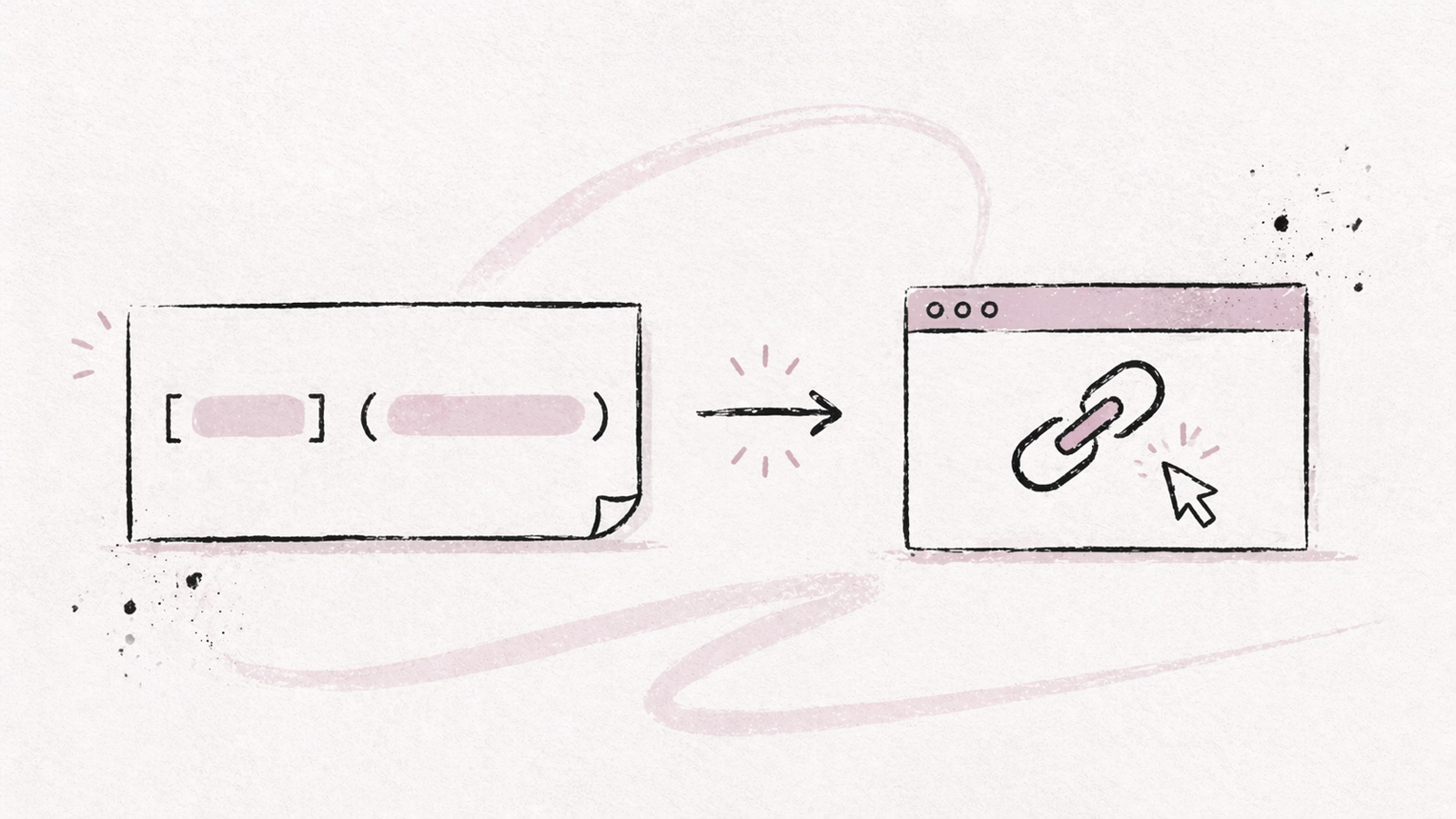
Links are one of the first things you learn in Markdown, and one of the last things you fully master. The basic hyperlink syntax takes five seconds. But then you need to link to a section within the same page, to a local file, to an email address, or to open a URL in a new tab — and suddenly the five-second syntax isn't enough.
This guide covers every type of Markdown link, from the basics to the edge cases that trip people up.
Inline links
The standard Markdown link. Square brackets for the text, parentheses for the URL.
[Fude](https://fude.md)This renders as a clickable hyperlink: the text "Fude" pointing to https://fude.md.
You can add an optional title that appears as a tooltip on hover:
[Fude](https://fude.md "A Markdown viewer for all your devices")The title goes inside quotes, after the URL, still inside the parentheses. Most renderers show it as a browser tooltip. But don't rely on it as an accessibility solution — support is inconsistent across devices and assistive technologies.
Reference links
When you use the same URL multiple times, or when long URLs make your text hard to read, reference links are the better option.
I use [Fude][fude] to read Markdown on all my devices.
For syntax questions, I check the [CommonMark spec][commonmark].

[fude]: https://fude.md "Markdown viewer"
[commonmark]: https://commonmark.org
The link definitions (the lines with [label]: URL) can be placed anywhere in the file — top, bottom, or grouped right after the paragraph that uses them. They don't appear in the rendered output.
You can also use the link text itself as the label:
Check out [CommonMark] for the full spec.

[CommonMark]: https://commonmark.org
This is called an implicit reference link. It's clean, but only works when the link text matches the label exactly (case-insensitive).
Reference links are especially useful in long documents like READMEs. They keep the prose readable and the URLs easy to update — change it once, and every reference picks up the new URL.
Autolinks
If you just want to display a raw URL as a clickable link, wrap it in angle brackets:
<https://fude.md>
<contact@fude.md>
Both render as clickable links. The first one links to the URL, the second creates a mailto: link.
In GitHub Flavored Markdown (GFM), bare URLs are automatically linked even without angle brackets:
Visit https://fude.md for more info.But this behavior isn't universal. CommonMark doesn't auto-link bare URLs. If you want your Markdown to work everywhere, use either the [text](url) syntax or angle brackets.
Links to sections (anchor links)
Linking to a heading within the same document is one of the most common needs — and one of the most confusing, because the behavior varies between tools.
The general syntax:
[Jump to the FAQ](#faq)The #faq part is the anchor. It matches a heading in the same document. The question is: how is the anchor generated from the heading text?
The rules for most renderers (GitHub, Obsidian, most static site generators):
- Convert the heading to lowercase.
- Replace spaces with hyphens.
- Remove punctuation (except hyphens).
- If there are duplicate headings, append
-1,-2, etc.
Examples:
| Heading | Anchor |
|---|---|
## Getting Started |
#getting-started |
## What's New? |
#whats-new |
## FAQ |
#faq |
## v2.0 Release Notes |
#v20-release-notes |
A heading like ## C++ Setup Guide becomes #c-setup-guide on GitHub (the + signs are stripped). But in Obsidian, the behavior may differ slightly. Always test your anchor links in the target renderer.
Linking to a section in another file
This works in GitHub and most documentation systems:
[Installation steps](./setup.md#installation)The path points to the file, and the # fragment points to the heading within that file. Relative paths (starting with ./ or ../) are the most portable option.
Relative links
Relative links point to other files in the same project, without using a full URL.
[Read the changelog](./CHANGELOG.md)
[Go back to the main page](../README.md)
[See the license](./docs/LICENSE)
The rules:
./means "same directory."../means "parent directory."- No prefix also works (
CHANGELOG.md), but./makes the intent explicit.
Relative links are essential in GitHub repositories. They work in READMEs, wikis, and rendered Markdown files. They also make your docs portable — if someone clones the repo, the links still work locally.
Paths with spaces
If a file or folder name contains spaces, encode them as %20:
[Design doc](./docs/design%20document.md)Or wrap the URL in angle brackets (less common, but valid):
[Design doc](<./docs/design document.md>)Both approaches work. I prefer %20 because it's more explicit and avoids surprises across different parsers.
Links to local files
Linking to a file on your local machine works in some renderers but not others.
[Open my notes](file:///Users/alice/Documents/notes.md)The file:// protocol is supported in some desktop Markdown apps, but browsers and GitHub strip it for security reasons. It's useful in personal notes (Obsidian, Fude, VS Code), but not for shared documents.
In Obsidian specifically, you can link to local files using the wiki-link syntax or standard Markdown:
[My note](./my-note.md)
[[my-note]]
The wiki-link syntax ([[...]]) is Obsidian-specific and won't render in standard Markdown renderers. If portability matters, stick with the standard syntax.
Email links
Two ways to create a clickable email link:
<contact@example.com>
[Send us an email](mailto:contact@example.com)
The first form auto-generates a mailto: link. The second lets you customize the link text.
You can also pre-fill the subject line:
[Report a bug](mailto:bugs@example.com?subject=Bug%20Report)The ?subject= parameter works in most email clients. Spaces need to be encoded as %20.
Image links
In Markdown, an image is not a link by default — it just embeds the image. To make an image clickable, wrap the image syntax inside a link:
[](https://fude.md)Breaking it down:
is the image.[...](https://fude.md)is the link wrapping the image.
The result: clicking the image navigates to the URL. This is commonly used for badges in GitHub READMEs:
[](https://github.com/user/repo/actions)Opening links in a new tab
Standard Markdown has no syntax for target="_blank". There's no way to force a link to open in a new tab using pure Markdown.
If your renderer supports HTML, you can use:
<a href="https://fude.md" target="_blank">Open Fude</a>This works on GitHub (partially — GitHub strips some attributes), in most static site generators, and in Obsidian's reading mode.
Some static site generators (Hugo, Astro, Nuxt Content) let you configure this globally — all external links open in a new tab by default, without needing HTML in your content. Check your framework's documentation.
Links in GitHub
GitHub Flavored Markdown supports all the link types above, with a few specifics:
- Auto-linking: bare URLs become clickable without angle brackets.
- Issue/PR references: in GitHub conversations,
#123automatically links to issue or pull request 123 in the same repo.user/repo#123links across repos. These shorthand references are not created in repository files or wikis. - Commit references: paste a commit SHA and GitHub turns it into a link.
- @mentions:
@usernamelinks to a GitHub profile. - Relative links: work in READMEs, wikis, and all rendered Markdown files. GitHub resolves them relative to the file's location in the repo.
file://links: stripped for security. Don't use them.
These auto-linking features are GitHub-specific. They won't work in other Markdown renderers.
Links in Fude
In Fude, standard Markdown links work as you would expect:
- Inline links
[text](url)and reference links render and are clickable. - Web links open in your default browser.
- Relative links between Markdown files work within your document collection. Clicking a link to another
.mdfile opens it directly in Fude. - Anchor links to sections within the same document scroll to the heading.
- Email links (
mailto:) open your default mail client. - Image links (clickable images) render correctly.
What Fude doesn't support:
file://protocol links are not supported for security reasons.- Raw HTML links (
<a href="..." target="_blank">) are not rendered as HTML — Fude focuses on standard Markdown syntax. - Wiki-links (
[[...]]) are not supported. Fude uses standard Markdown link syntax.
Links in Obsidian
Obsidian supports standard Markdown links and adds its own syntax:
- Wiki-links:
[[note-name]]links to another note in your vault.[[note-name|display text]]lets you customize the visible text. - Standard Markdown links:
[text](./note.md)works too. Obsidian resolves relative paths within the vault. - Section links:
[[note-name#section]]links to a heading in another note.[[#section]]links to a heading in the current note. - Block references:
[[note-name#^block-id]]links to a specific block (paragraph, list item) — an Obsidian-specific feature. - Embeds:
![[note-name]]embeds the content of another note inline. Not technically a link, but related.
The big choice in Obsidian: wiki-links vs. standard Markdown links. Wiki-links are shorter and auto-complete in the editor. Standard Markdown links are portable — they'll work if you ever move your notes to another tool.
You can switch between the two in Settings > Files and Links > "Use Wikilinks."
When to use which link type
With so many options, it's easy to overthink it. Here's a decision guide:
- Linking to an external website? Use an inline link:
[text](url). It's the default for a reason. - Same URL used multiple times in one document? Use reference links. One place to update, zero risk of inconsistency.
- Linking to another section on the same page? Use an anchor link:
[text](#heading-id). - Linking to another file in the same repo or project? Use a relative link:
[text](./other-file.md). Avoid absolute URLs — they break when the repo moves. - Just want to show a raw URL? Wrap it in angle brackets:
<https://example.com>. Clean and portable. - Making an image clickable? Wrap the image syntax inside a link:
[](url). - Need a
mailto:link? Either<email@example.com>or[text](mailto:email@example.com)— the second gives you control over the link text.
When in doubt, start with an inline link. It covers 80% of cases.
Debugging common problems
"My link shows as plain text"
Most likely cause: a space between the brackets and the parentheses.
[text] (url)   ← broken (space between ] and ()
[text](url)    ← correct
Markdown requires ] and ( to be immediately adjacent.
"The URL breaks because it contains parentheses"
URLs with parentheses — common in Wikipedia — break the Markdown parser because ) closes the link.
Fix: encode the parentheses.
[Article](https://en.wikipedia.org/wiki/Markdown_%28language%29)Replace ( with %28 and ) with %29. Alternatively, use a reference link:
[Article][wiki-md]

[wiki-md]: https://en.wikipedia.org/wiki/Markdown_(language)
Reference links handle parentheses in URLs more gracefully in most parsers.
"My anchor link doesn't work"
Check three things:
- Is the heading ID generated correctly? (lowercase, hyphens, no punctuation)
- Is there a duplicate heading with the same text? (the second one gets
-1appended) - Are you testing in the same renderer where it will be published? (GitHub, Obsidian, and Hugo all generate anchors slightly differently)
"My relative link works locally but breaks on GitHub"
Common cause: the link uses a path relative to the project root, but Markdown resolves paths relative to the file's location.
If your file is at docs/guide.md and you want to link to README.md at the root:
[README](../README.md)    ← correct (go up one directory)
[README](./README.md)     ← broken (looks in docs/)
[README](/README.md)      ← works on some platforms, not all
Use ../ to navigate up. Avoid leading / for maximum portability.
Quick reference
# Inline link
[text](https://example.com)
[text](https://example.com "title")
# Reference link
[text][label]
[label]: https://example.com
# Autolink
<https://example.com>
<user@example.com>
# Anchor (same page)
[Go to section](#section-name)
# Relative link
[Other file](./other-file.md)
[Section in other file](./other-file.md#section)
# Email
[Email us](mailto:hi@example.com)
# Image link
[](https://example.com)
# New tab (HTML)
<a href="https://example.com" target="_blank">Link</a>Markdown links are deceptively simple. The basic syntax covers 80% of cases, but the remaining 20% — anchor links, relative paths, URLs with special characters, tool-specific behaviors — is where most people get stuck.
Now you have the complete picture.
For other Markdown guides, see our articles on tables, horizontal lines, and why AI responds in Markdown.
If you're looking for a Markdown viewer that handles links cleanly across all your devices, try Fude.