Markdown Guides
May 15, 2026
By Antoine Frankart
How to Add Images in Markdown
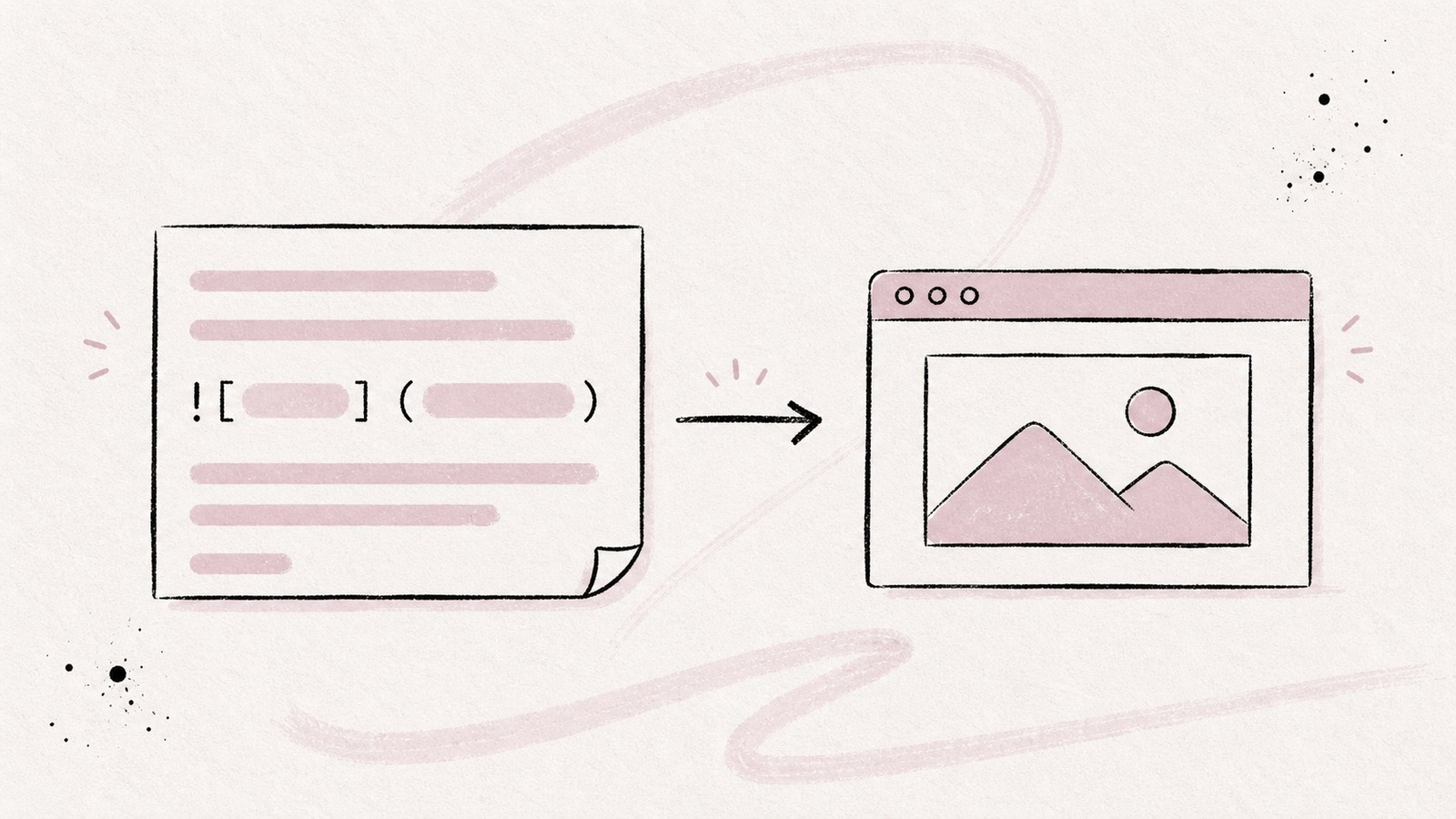
Images in Markdown look almost like links, with one extra character at the beginning. That tiny exclamation mark is easy to miss, but it changes everything: instead of creating a clickable link, Markdown embeds the image directly in the document.
The basic syntax takes five seconds. The details take longer: local paths, alt text, image size, captions, GitHub behavior, Obsidian embeds, and what happens when the file moves.
This guide covers the practical version, from the syntax you need every day to the edge cases that usually send people to Stack Overflow.
The basic syntax
The standard Markdown image syntax is:
It has three parts:
!tells Markdown this is an image, not a link.[Alt text]describes the image.(./image.png)points to the image file.
For example:
If the image loads correctly, the reader displays the image. If it does not load, most renderers show the alt text instead.
The most common mistake is forgetting the exclamation mark:
[Logo](./logo.png) ← link to the image file
 ← display the imageThe first line creates a link. The second line embeds the image.
Local images
Most Markdown images use a relative path. The path is resolved from the location of the Markdown file.
If your document is here:
docs/guide.md
And your image is here:
docs/assets/architecture.png
Then ./assets/architecture.png is correct.
If the image is one directory up:
The rules are the same as for relative links:
./means "same directory."../means "parent directory."folder/image.pngworks too, but./folder/image.pngmakes the intent clearer.
I recommend keeping images close to the Markdown files that use them. A simple structure works well:
docs/
  guide.md
  images/
    diagram.png
    screenshot.png
Then reference them like this:

This keeps the document portable. If you move the whole docs folder, the image paths still work.
Web images
You can also use a full URL:
This is useful for remote assets, CDN-hosted images, badges, and documentation that must render without local files.
The tradeoff: the image depends on the remote URL. If the server goes down, the image disappears. If the owner replaces the image, your document changes without you touching it.
For long-lived documentation, I prefer local images. For badges and dynamic assets, remote images are fine.
Alt text
Alt text is not decoration. It describes the image for readers who cannot see it, and it gives useful fallback text when the image cannot load.
Good alt text explains the content or purpose of the image:
Weak alt text only repeats that an image exists:

If the image is decorative and adds no information, you can leave the alt text empty:
But do this intentionally. Most images in documentation are not decorative. Diagrams, screenshots, charts, and UI captures usually need meaningful alt text.
Image titles
Like links, images can have an optional title:
The title appears as a tooltip in some renderers. Support is inconsistent, especially on touch devices, so don't put essential information there.
Use alt text for meaning. Use the title only for a small extra note.
Image formats
Markdown itself does not care whether the image is PNG, JPG, SVG, WebP, AVIF, or GIF. The renderer does.
Common choices:
| Format | Best for | Notes |
|---|---|---|
| PNG | Screenshots, UI, diagrams | Sharp, reliable, often larger |
| JPG | Photos | Small, but lossy |
| SVG | Logos, vector diagrams | Great when the renderer allows it |
| WebP | Web images | Small, widely supported |
| AVIF | Highly compressed web images | Excellent compression, not universal everywhere |
| GIF | Simple animations | Heavy; use sparingly |
For Markdown files you read locally or store in a repository, PNG is usually the safest default for screenshots and diagrams.
Resizing images
Standard Markdown has no syntax for image width or height.
This does not work in standard Markdown:
Some tools support custom extensions like that, but they are not portable.
The most common portable workaround is HTML:
<img src="./logo.png" alt="Logo" width="200" />This works in many Markdown renderers, including GitHub, but not all of them. Some apps disable raw HTML for security or consistency.
If you need your document to work everywhere, resize the image file itself before referencing it:
That is boring, but reliable.
Captions
Standard Markdown has no native caption syntax for images.
The simplest workaround is an italic paragraph right below the image:

*Fude rendering a local Markdown document.*This is readable in the raw Markdown file and works almost everywhere.
If your renderer supports HTML, you can use <figure> and <figcaption>:
<figure>
  <img src="./fude-reading-view.png" alt="Fude reading view" />
  <figcaption>Fude rendering a local Markdown document.</figcaption>
</figure>
This is semantically better in HTML, but less portable in Markdown tools that strip raw HTML. For notes and README files, I usually choose the italic paragraph.
Clickable images
An image is not clickable by default. To make it clickable, wrap the image syntax inside a link:
[](https://fude.md)Breaking it down:
displays the image.[...](https://fude.md)makes that image link to the URL.
This pattern is common for badges:
[](https://github.com/user/repo/actions)If you already read the guide on Markdown links, this is the same syntax with an image inside the link text.
Images inside tables
Images can appear inside Markdown tables because they are inline content:
| Product | Preview |
| --- | --- |
| Fude |  |This works in many renderers, including GitHub.
But use it carefully. Large images inside tables make the table hard to scan, especially on small screens. If the image needs real space, put it outside the table and link to it from the table instead.
Base64 images
You can technically embed an image directly in Markdown using a data URL:
This makes the Markdown file self-contained, but it also makes it ugly, huge, and hard to edit.
I avoid base64 images except for tiny generated assets or test fixtures. For normal writing, keep the image as a separate file.
Images in GitHub
GitHub supports standard Markdown image syntax in README files, issues, pull requests, wikis, and rendered .md files.
What works well:
- Relative image paths such as
. - Remote image URLs such as
. - SVG images, when they are served safely.
- Clickable images with
[](url). - HTML
<img>tags for resizing, such as<img src="./logo.png" width="200" alt="Logo">.
A few GitHub-specific notes:
- Paths are resolved relative to the Markdown file, not the repository root.
- Dragging an image into a GitHub issue uploads it and inserts a generated URL.
file://images do not work. GitHub cannot read files from your computer.- If an image works locally but not on GitHub, check capitalization. macOS is often case-insensitive; GitHub is case-sensitive.
Images in Fude
In Fude, standard Markdown images are designed to render cleanly:
- Local relative images work from the Markdown file location.
- Root-local images such as
/images/logo.pngare resolved through Fude's safe asset path. - Remote web images render as normal images.
- Data URL images render when they use a safe image type.
- Unsupported sources such as
file://,blob:, andjavascript:are not rendered as live images.
Fude also treats image display as a reading preference. You can hide images, show standard Markdown images, or opt into the sanitized HTML image mode when you need raw HTML image tags.
The important part: Fude does not leak arbitrary local paths into the renderer. Local images are loaded through a controlled asset channel, which keeps the reading experience useful without turning Markdown into unrestricted filesystem access.
Images in Obsidian
Obsidian supports standard Markdown images:
It also supports wiki-style embeds:
![[screenshot.png]]The wiki syntax is shorter and works well inside an Obsidian vault, but it is not standard Markdown. If you plan to read the same file in GitHub, Fude, VS Code, or a static site generator, use the standard syntax.
Obsidian also supports its own image sizing syntax:
![[screenshot.png|400]]Useful inside Obsidian, not portable outside it.
Debugging common problems
"My image shows as a link"
You probably forgot the exclamation mark:
[Alt](./image.png) ← link
 ← image"My local image doesn't load"
Check the path from the Markdown file, not from the project root.
If your file is docs/guide.md and your image is docs/images/chart.png, use:
Not:
That second path only works if the Markdown file is at the project root.
"It works on my Mac but not on GitHub"
Check capitalization:
will not find:
images/Logo.png
on a case-sensitive system.
Also check spaces. Either encode them:
Or wrap the path in angle brackets:
"I can't resize the image"
Pure Markdown cannot resize images. Use one of these options:
<img src="./image.png" alt="Alt text" width="400" />or resize the actual file:
The second option is more portable.
"My image path contains parentheses"
Parentheses can confuse the parser because ) closes the image destination.
Use percent encoding:
Or use angle brackets:
.png>)Quick reference
# Basic image

# Image with title

# Remote image

# Empty alt text for decorative image

# Clickable image
[](https://example.com)
# Caption workaround

*Caption text.*
# Resize with HTML
<img src="./image.png" alt="Alt text" width="400" />
# Path with spaces
Markdown image syntax is simple, but images expose everything that makes Markdown practical: paths, portability, accessibility, and renderer differences.
If you remember one rule, make it this: keep images near the Markdown files that use them, and write alt text as if the image might fail to load.
For more Markdown guides, see the articles on links, tables, and horizontal lines.
If you want a Markdown reader that handles local images cleanly, try Fude.