Markdown Guides
August 6, 2026
By Antoine Frankart
Markdown Lists: Bullets, Numbering, Nesting, and Checkboxes
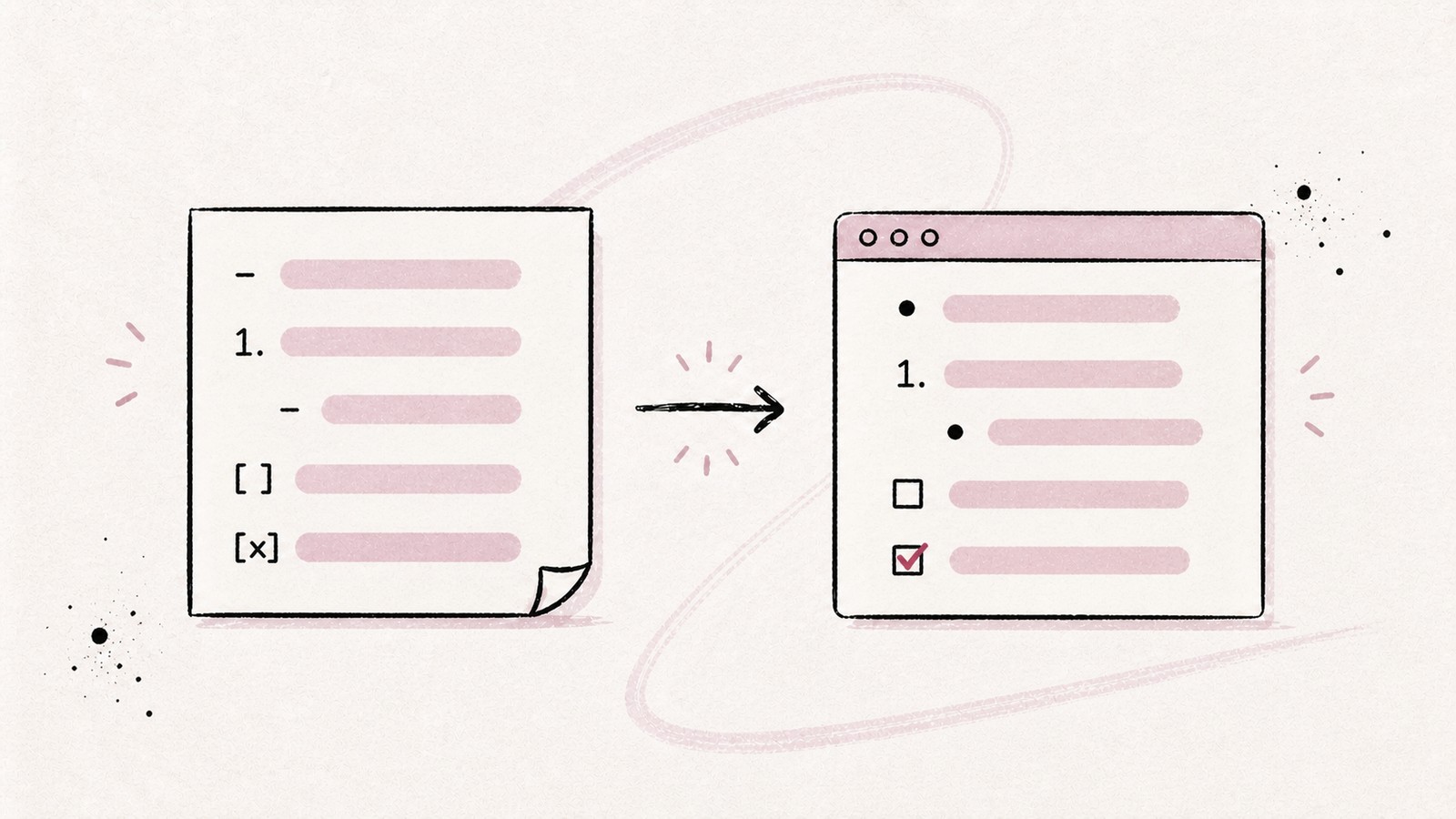
A Markdown list often begins with a simple hyphen. Then you add a subitem, a checkbox, a second paragraph, or a code block, and what seemed obvious suddenly depends on a few invisible spaces.
The basic syntax for writing lists and checkboxes in Markdown is simple:
- A bulleted item
- Another item

1. First step
2. Second step

- [ ] Task to do
- [x] Completed task
In this guide, I will start with these three forms, then explain automatic numbering, nested lists, content that spans multiple lines, checkboxes, and the differences between GitHub, Obsidian, and Fude.
If .md files are still new to you, start with my guide What Is a Markdown File (.md) and How Do You Open It?.
1. Choose the right type of Markdown list
Markdown offers three families of lists:
| Goal | Syntax | Use it when |
|---|---|---|
| Bulleted list | - Item |
The order does not matter |
| Numbered list | 1. Step |
The order or progression matters |
| Task list | - [ ] Task |
Each item has an open or completed state |
Here is the same content expressed in three different ways:
# Information with no particular order
- Documentation
- Tests
- Release

# Steps to follow in order
1. Write the documentation
2. Run the tests
3. Publish the release

# Work to track
- [x] Write the documentation
- [ ] Run the tests
- [ ] Publish the release
Rendered:
Information with no particular order
- Documentation
- Tests
- Release
Steps to follow in order
- Write the documentation
- Run the tests
- Publish the release
Work to track
- Write the documentation
- Run the tests
- Publish the release
The choice should not be purely visual. A numbered list tells the reader that a sequence exists. A checkbox turns a descriptive item into a task. If neither piece of information is useful, a bulleted list remains the simplest option.
2. Create a bulleted list
To create an unordered list, place a hyphen followed by a space in front of each item:
- Apples
- Pears
- Apricots
Rendered:
- Apples
- Pears
- Apricots
The space after the hyphen is required:
- Valid item
-Invalid item
The second line usually remains plain text because -Invalid item has no space between the marker and the content.
Hyphen, asterisk, or plus sign?
Markdown syntax accepts three markers for bulleted lists:
- With a hyphen
* With an asterisk
+ With a plus sign
Rendered:
- With a hyphen
- With an asterisk
- With a plus sign
All three produce a bullet. I still recommend the hyphen -: it is easy to read in the source and avoids confusion with the asterisk used for bold and italic text.
Keep the same marker throughout a list as well. Changing the character can create two separate lists depending on the renderer:
- First group
- Same group

* Potential new group
* Same new group
The blank line makes the separation intentional here. Without it, the result may look identical on screen even though the HTML structure contains several lists.
Add a sentence before the list
I leave a blank line before and after a list:
The document contains three sections:

- introduction
- analysis
- conclusion

The next section explains the analysis in detail.
Markdown readers can often recognize a list without that blank line. Adding it still makes the source clearer and avoids differences with older or stricter renderers.
3. Create a numbered list
An ordered list uses a number, a period, and a space:
1. Install the app
2. Add a project
3. Open a Markdown file
Rendered:
- Install the app
- Add a project
- Open a Markdown file
The number is part of the marker. 1.Installation does not work correctly because the space after the period is missing.
Some Markdown readers also accept a closing parenthesis:
1) First step
2) Second step
This form is valid in compatible renderers, but 1. remains the most familiar and portable syntax. It is the one I use throughout the blog guides.
Do you need to write the actual numbers?
The Markdown renderer determines the starting number from the first item, then calculates the rest. These two sources can therefore both produce 1, 2, 3 in the rendered output:
1. Prepare
2. Check
3. Publish
1. Prepare
1. Check
1. PublishRendered in both cases:
- Prepare
- Check
- Publish
Repeating 1. has one advantage: you can move or insert a step without renumbering every line that follows.
I still prefer to write the actual numbers in a document that may also be read as plain text. The rendered result is correct either way, but 1., 2., 3. is easier to understand when the file appears in a terminal, a Git diff, or an editor without a preview.
Start at a different number
To resume a procedure at step 4, start the new list with 4.:
4. Restart the app
5. Check the result
6. Archive the log
In most Markdown readers, the first marker sets the starting number. The numbers that follow do not necessarily control every number displayed: the reader usually continues the sequence itself.
This detail explains a sometimes surprising result:
4. Restart the app
9. Check the result
2. Archive the log
The rendered output may display 4, 5, 6. To avoid misleading anyone who reads the source, keep the numbering consistent even when the parser can correct it.
Avoid creating a numbered list by accident
A sentence that begins with a year followed by a period can be interpreted as a list:
1986. An important year for the project.Escape the period with a backslash if you want to keep it as a regular sentence:
1986\. An important year for the project.Rendered: 1986. An important year for the project.
4. Create a nested list
A nested list places one list inside a parent item. Indent the subitems with four spaces:
- Documentation
    - Installation guide
    - Contribution guide
- Application
    - Reader
    - Project library
Rendered:
- Documentation
- Installation guide
- Contribution guide
- Application
- Reader
- Project library
Four spaces provide a simple and portable rule. Some renderers accept two or three spaces in simple cases, but the result becomes more fragile when markers are longer or an item contains several blocks.
The precise rule is to align the nested content with the beginning of the parent item's text. Compare these two items:
1. First item
   - Subitem

100. One-hundredth item
     - Subitem
The 100. marker takes up more space than 1.. Its subitem therefore needs additional indentation to remain attached to the correct parent.
Add several levels
You can repeat the indentation:
- Project
    - Application
        - Interface
        - Storage
    - Website
        - Blog
        - Documentation
Rendered:
- Project
- Application
- Interface
- Storage
- Website
- Blog
- Documentation
- Application
Technically, lists can contain many levels. In practice, three levels are almost always enough. Beyond that, the structure becomes difficult to scan on a small screen and tedious to maintain in the source.
If you need five or six levels, headings and subheadings probably describe the hierarchy more clearly.
5. Mix bullets and numbers
A numbered list can contain bullets:
1. Prepare the document
    - check the title
    - add a description
    - review the links
2. Check the rendered output
    - open the file
    - check the images
    - test the examples
3. Publish
Rendered:
- Prepare the document
- check the title
- add a description
- review the links
- Check the rendered output
- open the file
- check the images
- test the examples
- Publish
The reverse works as well:
- Mac version
    1. Download the app
    2. Move Fude to Applications
- Windows version
    1. Download the installer
    2. Follow the displayed steps
Rendered:
- Mac version
- Download the app
- Move Fude to Applications
- Windows version
- Download the installer
- Follow the displayed steps
The type used at each level should express its role. Bullets group options or details, while numbers describe a sequence to follow.
6. Add checkboxes in Markdown
A task list, often called a Markdown checklist, is a list where each item begins with a pair of brackets. The hyphen remains the most common marker:
- [ ] Prepare the draft
- [x] Check the examples
- [ ] Publish the article
Rendered:
- Prepare the draft
- Check the examples
- Publish the article
A space between the brackets represents an open task. A lowercase or uppercase x represents a completed task:
- [ ] To do
- [x] Completed
- [X] Also completed
Spaces matter. This form is correct:
- [ ] Open taskThese forms are not:
- [] Brackets with no space inside
- [ ]Task with no space after the brackets
[ ] Item with no list marker
Checkboxes were not part of Markdown's original syntax. GitHub popularized them, and they are now understood by GitHub, Obsidian, Fude, and many modern tools.
This extension also allows checkboxes inside a numbered list:
1. [x] Prepare the draft
2. [ ] Review the examples
3. [ ] Publish the article
Rendered:
- Prepare the draft
- Review the examples
- Publish the article
This form is valid, but it combines two pieces of information: the order of the steps and their state. Use it for a procedure that must be completed in order. For a simple to-do list, hyphens are more natural.
Nest tasks
Task lists follow the same indentation rules as other lists:
- [ ] Publish the new release
    - [x] Write the release notes
    - [ ] Generate the installation files
    - [ ] Send the announcement
- [ ] Prepare the next release
Rendered:
- Publish the new release
- Write the release notes
- Generate the installation files
- Send the announcement
- Prepare the next release
Checking every subitem does not automatically check the parent in Markdown itself. An app may add that behavior, but the file only contains the [ ] and [x] states that you wrote.
A displayed checkbox is not always interactive
Rendering a checkbox and changing it are two different things.
A static reader can display an empty or checked box without letting you click it. An editor can update the source directly when you click. On GitHub, the behavior also depends on the context: task lists in issues and pull requests include tracking features that a simple file displayed elsewhere does not have.
To keep the document portable, always treat the text as the source of truth: replace [ ] with [x] to complete a task, and do the reverse to reopen it.
Can you put a checkbox inside a Markdown table?
A Markdown checkbox must belong to a list item. When placed by itself inside a table cell, the [ ] sequence therefore does not usually become a task:
| Task | Status |
| --- | --- |
| Review the article | [ ] |
| Check the links | [x] |
Rendered in most Markdown readers:
| Task | Status |
|---|---|
| Review the article | [ ] |
| Check the links | [x] |
Some tools add their own interpretation, but the result is not portable. For a purely visual indication, you can use the ☐ and ☑ characters. They remain text, are not interactive, and do not represent a Markdown task state.
If you need actual tasks, keep a checklist. If you need to compare several properties on each row, use a table and choose a label such as “To do” or “Completed.” The complete guide to Markdown tables explains their syntax and limitations.
7. Format the content of a list
A list item can contain most inline Markdown syntax:
- **Important**: back up the file
- *Optional*: change the theme
- ~~Abandoned~~: export to XML
- Read the [guide to links](/en/blog/how-to-create-links-in-markdown/)
Rendered:
- Important: back up the file
- Optional: change the theme
Abandoned: export to XML- Read the guide to links
The guide to bold, italic, strikethrough, and underline in Markdown explains the compatibility differences between these styles.
Add several paragraphs to one item
Leave a blank line, then indent the following paragraph to keep it inside the same item:
1. Back up the database.

    This copy lets you roll back if the migration fails.

2. Run the migration.

    Keep the log until validation is complete.
Rendered:
-
Back up the database.
This copy lets you roll back if the migration fails.
-
Run the migration.
Keep the log until validation is complete.
Without indentation, the second paragraph may leave the list and interrupt the numbering.
Add a blockquote
Indent the > marker as well:
- Review the rule before continuing.

    > An untested backup is not yet a reliable backup.

- Check the copy.
Rendered:
-
Review the rule before continuing.
An untested backup is not yet a reliable backup.
-
Check the copy.
Add a code block
The block fenced by three backticks must remain attached to the item:
1. Run the command:

    ```bash
    pnpm test
    ```

2. Fix any errors.
Rendered:
-
Run the command:
pnpm test -
Fix any errors.
Fenced blocks are generally easier to read than blocks created using only spaces, especially inside an already nested list.
Add an image
An image can become part of a list item:
- Light theme preview

- Dark theme preview
Paths, alternative text, and the differences between local files and web images are explained in the guide How to Add Images in Markdown.
8. Understand tight and loose lists
These two lists do not have exactly the same structure:
- First item
- Second item
- Third item
- First item
- Second item
- Third itemTight rendering:
- First item

- Second item

- Third item
Loose rendering:
-
First item
-
Second item
-
Third item
The first is a tight list. The second is a loose list. In a loose list, each item usually contains an actual paragraph, which adds vertical spacing depending on the reader's stylesheet.
I use tight lists for short items. I reserve loose lists for items made up of several sentences or several blocks.
Adding blank lines at random to “fix” the output often has the opposite effect. Decide whether the list should be tight or loose, then apply the same structure to every item.
9. Compare GitHub, Obsidian, and Fude
Bulleted lists, numbered lists, and nesting are part of the foundation supported by all three tools. The main differences concern editing and checkboxes.
On GitHub
GitHub uses its own variant of Markdown. It supports:
- bulleted and numbered lists;
- nested lists with several levels;
- task lists using
[ ]and[x]; - formatting, links, and issue references inside items.
In GitHub editing areas, Tab and Shift + Tab indent or outdent the selected lines. Task lists placed in issues and pull requests can also participate in tracking work.
GitHub recommends visually aligning a nested list marker with the beginning of the parent item's text. This method becomes particularly useful when the ordered list begins with 100. instead of 1..
In Obsidian
Obsidian displays lists and lets you check tasks from its editing modes. Clicking the box then updates the local Markdown file by replacing its state.
Themes and plugins can add other task symbols or states. Those conventions remain specific to the Obsidian environment. If the file needs to be read elsewhere, keep [ ] and [x] for essential states.
In Fude
Fude supports the Markdown variant used by GitHub, including its task lists. Bullets, numbers, nesting, bold text, links, and checkboxes are therefore displayed in the reader.
Fude remains a reader: you cannot check a box in the rendered view of your file. The visible state comes from [ ] or [x] in the source, which you can change with your editor or an AI agent.
When a task list becomes too long to scan vertically, Fude can also turn a dedicated block into a Kanban board. The guide Create a Kanban Board in Markdown with Fude and AI Agents explains this reader-specific syntax.
You can paste every example from this article into the free Markdown reader on Fude.md to check its rendered output immediately.
10. Troubleshoot common problems
“My hyphens remain visible as text”
Check the space after the marker:
- correct
-incorrect
Also make sure you are looking at the rendered document. An editor in source mode naturally displays the hyphens. A reader turns them into bullets.
“My nested list stays at the same level”
The indentation is insufficient or inconsistent. Use four spaces and avoid mixing tabs and spaces:
- Parent
    - Child
Enable the display of invisible characters in your editor if two lines that look aligned do not behave the same way.
“My numbering restarts at 1”
A paragraph, code block, or incorrectly indented line has probably split the list in two. Check that the intermediate content still belongs to the previous item and is indented.
An intentional break can start at a different number:
4. Resume at the fourth step“My checkboxes do not appear”
Check the three places where a space is required:
- [ ] TaskYou need one space after the hyphen, one inside the brackets for an open task, and one after ].
If the syntax is correct but the brackets remain visible, the reader probably does not support task lists.
“I can see the checkbox, but I cannot click it”
The reader displays the state without providing editing controls. Change [ ] to [x] in the source, or open the file in an editor that can reflect a click back into the Markdown.
“Three asterisks create a horizontal rule”
Three separated asterisks can be interpreted as a horizontal rule:
* * *To create three items, place each marker on its own line with its content:
* First item
* Second item
* Third item
The guide How to Add a Horizontal Line in Markdown explains this ambiguity and the other available syntax.
“My content leaves the list”
Paragraphs, blockquotes, images, and code blocks that belong to an item must remain indented. A blank line alone is not enough to express that relationship.
When in doubt, simplify the item temporarily: keep only its first line, check the rendered output, then reintroduce each block one at a time with the same indentation.
11. Copy this cheat sheet
# Bulleted list
- First item
- Second item
- Third item

# Numbered list
1. First step
2. Second step
3. Third step

# Automatic numbering
1. First step
1. Second step
1. Third step

# Nested list
- Parent
    - Child
        - Grandchild

# Bullets inside a procedure
1. Prepare
    - back up the data
    - close the app
2. Run
3. Check

# Checkboxes — supported by GitHub and many readers
- [ ] Open task
- [x] Completed task

# Nested tasks
- [ ] Publish
    - [x] Write
    - [ ] Review
    - [ ] Go live

# Several paragraphs inside one item
1. First step.

    Explanation that remains attached to the first step.

2. Second step.

# Code block inside an item
1. Run the tests:

    ```bash
    pnpm test
    ```

2. Check the result.

# Escape a false list number
1986\. A year, not a step.
Markdown lists remain simple as long as their structure is visible in the source. A hyphen and a space create a bullet. A number followed by a period creates a step. Four spaces attach a subitem to its parent. Finally, [ ] and [x] add a task state in readers that support task lists.
The most useful rule is not a character: choose the structure that actually expresses your intention. Use bullets to group, numbers to guide, and checkboxes to track. When the hierarchy becomes too deep, return to headings. When the number of tasks becomes too large, switch to a Kanban view.
To continue learning, read the guides to Markdown links, images, tables, and text formatting.
To test a list without creating a file, paste its source into the free Markdown reader on Fude.md.