Product & Changelog
July 29, 2026
By Antoine Frankart
Create a Kanban Board in Markdown with Fude and AI Agents
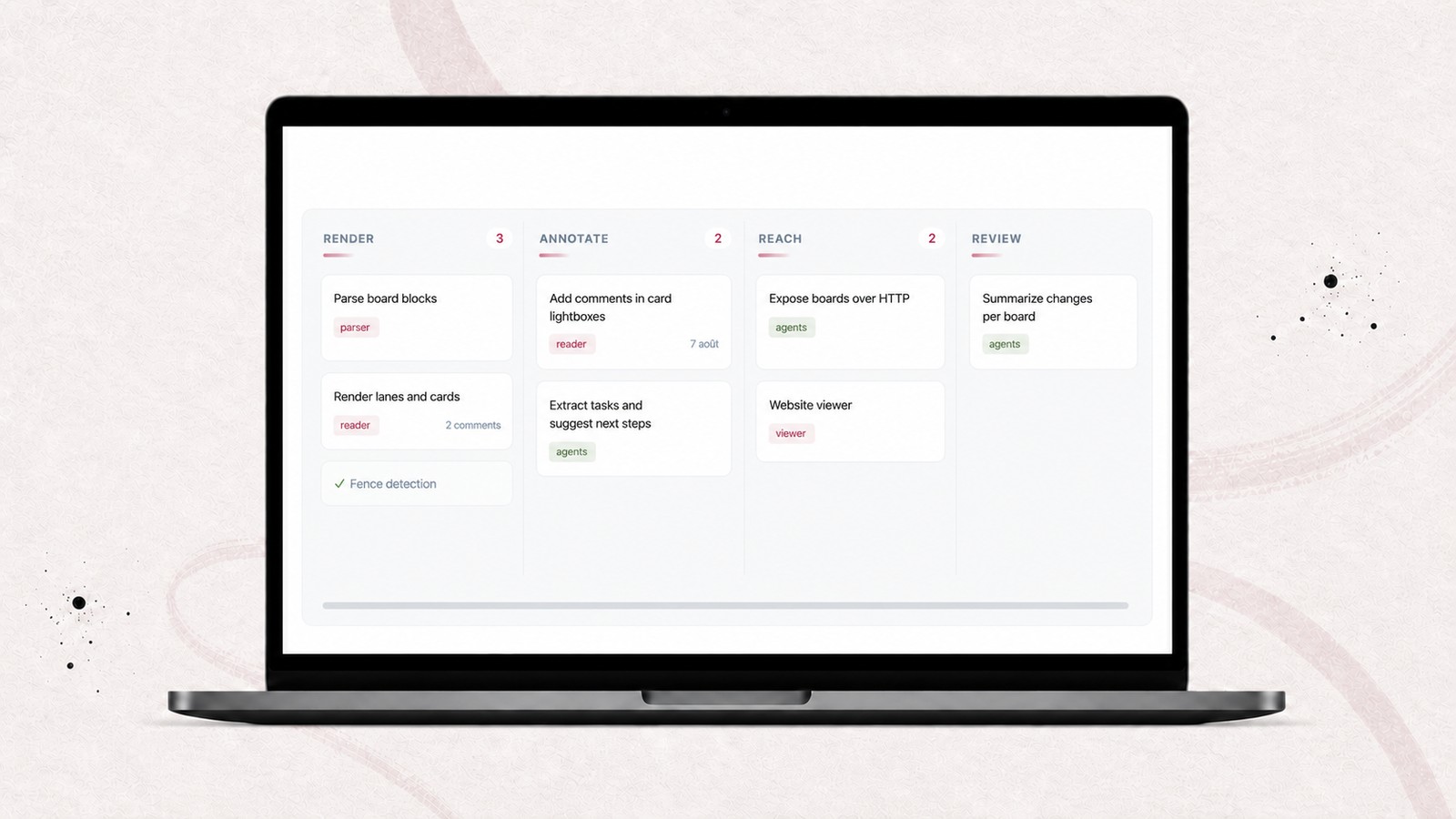
New in Fude: you can now display a Kanban board directly from a Markdown file.
The idea came from this tweet by Wes Wagner: the .md file is an excellent interface for agents, while the Kanban board is a better interface for humans.
Kanban boards have become a common way to track projects because they show the state of the work at a glance: what remains to be done, what is moving forward, what is waiting for review, and what is complete. A simple list may contain the same information, but it quickly becomes difficult to scan as the project grows.
At the same time, Markdown files are at the heart of AI workflows. They are structured, readable, easy to version, and easy for both agents and humans to edit.
Combining the two creates a natural workflow: the agent creates and maintains the Markdown file, while Fude turns it into a board that you can read and track visually. One file remains the source of truth, with no need to copy tasks into another tool.
Here is how to ask an AI agent to create your first board, understand the result, and write one yourself if you want to.
1. Ask an AI agent to create the board
The main use case is not entering every card by hand. It is letting an AI agent turn a specification, a task list, or a project plan into a Kanban board.
You can start with a short prompt:
Prepare the plan for this feature as a Fude Kanban board, save it in a Markdown file, then open it in Fude.
If your agent already knows the Fude convention through the skill installed with the app, this instruction is enough. It knows how to use the kanban-board block, organize tasks into columns, and open the result in the reader.
For more control over the result, use a more detailed prompt:
Create a Fude Kanban board to prepare the next release of the app.
Use the columns “To do,” “In progress,” “In review,” and “Done.”
Each card must be a top-level Markdown task.
Add tags for the relevant areas and a due date when it provides useful information.
Place**Complete**in the “Done” column to mark it as an archive.
Save the result in a.mdfile, then open it in Fude.
The agent produces the file. Fude produces the view.
Download Fude to try this workflow.
You can then review the plan without rereading a long raw list in your IDE, terminal, or AI application.
2. The result is a real board, not a screenshot
The board below is part of this article's Markdown. It is not an image.
## To do

- [ ] Prepare the launch screenshots #communication @{2026-09-10}
- [ ] Document the syntax for agents #docs

  Add a minimal example and a complete template to copy.

## In progress

- [ ] Finalize the website rendering #website
- [ ] Check the light and dark themes #design

## In review

- [ ] Test comments inside cards #reader
- Review the publishing guide #content

## Done

**Complete**

- [x] Define the `kanban-board` format #markdown
- [x] Add tags and due dates #parser
The headings become columns. The list items become cards. Checkboxes, tags, and dates provide the information you need to track the work.
The document is still a simple .md file. Your agent can edit it with its usual tools, Git can preserve its history, and Fude makes it pleasant to browse.
3. Create columns and cards
A Fude board lives entirely inside a code block named kanban-board.
Here is the minimal structure:
```kanban-board
## To do

- [ ] Prepare the documentation

## In progress

- [ ] Finalize the component

## Done

- [x] Define the format
```
The kanban-board name explicitly tells Fude to display the content as a board. A regular Markdown list therefore remains a regular list.
Each heading opens a column. Its absolute level does not matter, as long as every column uses the same level:
### To do
### In progress
### Done
Under each heading, a list item creates a card:
- [ ] Open task
- [x] Completed task
- Idea with no completion state
The last form works well for an idea, a note, or a decision that belongs on the board without being a task to check off.
The same document can contain text before and after the board, or even several boards. For example, you can track the implementation of the next release in one board and its launch communication in another.
4. Add details to cards
A card can contain more than a title. Fude recognizes tags, due dates, and Markdown content placed below the task.
Add tags
A word beginning with # becomes a badge:
- [ ] Review the navigation #design
- [ ] Fix synchronization #backend
- [ ] Prepare the campaign #growth/email
Tags make it easy to identify the areas involved without adding more columns.
Add a due date
A date placed between @{ and } becomes a due date:
- [ ] Publish the release notes #communication @{2026-09-15}You can also include a time:
- [ ] Release the new version #release @{2026-09-15T14:30}Fude formats the date according to the app's language and visually identifies overdue dates.
The syntax accepts one due date per card. It deliberately excludes time zones: the time represents a local intention, not an instant to convert from one country to another.
Add a description
To keep more context inside a card, add indented content below its title:
- [ ] Prepare the documentation #docs

  Explain the minimal format before the advanced options.

  - add an example created by an agent;
  - show the result in Fude;
  - provide a template to copy.
Click the card in Fude to open this content in a reading window.
The content remains regular Markdown. It can contain:
- paragraphs;
- lists;
- bold, italic, or strikethrough text;
- Markdown links;
- local or remote images;
- code blocks;
- Mermaid diagrams.
5. Update the board with the agent
Creating the board is only the beginning. The format becomes most useful as the project moves forward.
Suppose the screenshots are complete and the documentation moves into review. You can ask:
Update the board for the next release. Move the launch screenshots to “Done.” Move the documentation to “In review.” Add a task to review the English version before September 15.
The agent edits the Markdown file directly. As soon as Fude reloads the document, the cards appear in their new columns.
There is no synchronization between two tools to maintain. The text is the board, and the board is a view of that text.
You can also make changes by hand. Moving a card means moving its line below another heading. Completing a task means replacing [ ] with [x].
6. Mark completed work
A column can be displayed as an archive. Add the following marker below its heading:
## Done

**Complete**

- [x] Define the board format
- [x] Validate the first examples
The visible column name remains up to you: Done, Completed, Archive, or any other title. Only the structural marker remains **Complete**.
The cards do not disappear. Fude simply presents this column more discreetly so the active work stays in focus.
7. Review and comment on the agent's work
The Kanban board integrates with Fude's reading features. You can:
- click a card to read its full content;
- search for a word in card titles and descriptions;
- select a passage;
- leave a comment inside a card;
- identify cards that still contain open comments.
This creates a simple workflow:
- the agent creates or updates the Markdown file;
- Fude displays the board;
- you open a card and leave a comment, such as “split this task into two”;
- the agent retrieves the comment through Fude's MCP server;
- it updates the file with its usual tools;
- you review the result and resolve the comment.
The comment remains attached to the document and its context. You do not create a second list of requests beside the project.
8. A board to read, not another project management tool
Fude displays the board, but it does not try to replace Trello or Linear.
There is no drag-and-drop, no form for creating a card, and no menu for changing its status. The board also does not combine tasks from several files or calculate velocity metrics.
The workflow remains deliberately simple: the agent or your editor changes the Markdown, then Fude displays the new state. This matches Fude's role as a Markdown reader.
Outside Fude, the block appears as code. GitHub, Obsidian, and other readers still let you read and edit the headings, tasks, tags, and dates, but they do not arrange them into columns.
The file therefore remains readable as text, easy to version with Git, comparable in a pull request, and accessible to your usual tools. Only the Kanban rendering depends on Fude.
Boards are part of Fude's reading features and are available for free.
9. Fix common problems
A few rules prevent most issues:
- the block must use the exact name
kanban-board; - it must contain at least one heading;
- all column headings must use the same level;
- each card must be a list item placed below a column;
- content added after a blank line must remain indented below its card;
- dates use the format
@{2026-09-15}or@{2026-09-15T14:30}; - an archived column contains
**Complete**on its own line.
If the board appears as a code block, start by checking its opening:
```kanban-board
## To do

- [ ] First task
```
Fude never tries to turn a list into a board automatically. The block name is what triggers the rendering.
10. Copy the template
Here is a complete template for your next project:
```kanban-board
## Backlog

- Idea to explore #discovery

## To do

- [ ] Prepare the documentation #docs @{2026-09-15}

  Add the context needed to complete the task.

- [ ] Check the themes #design

## In progress

- [ ] Finalize the board rendering #development

## In review

- [ ] Review the launch copy #communication

## Done

**Complete**

- [x] Define the `kanban-board` format #markdown
```
You can write this block yourself, save it as a template, or ask your agent to generate it from an existing specification.
If you are still getting familiar with the format, start with the guide Markdown files (.md): what they are and how to open them. To understand why agents produce this type of file so naturally, read the article about the relationship between Markdown and AI.
The goal is not for Fude to compete with Trello or Linear. The feature solves a more specific problem: making an AI-written plan as pleasant for a human to browse as it is easy for an agent to edit.
The result fits in a single file. The agent writes the source. Git preserves its history. Fude renders the board and becomes the place for reading and review.
To try the syntax without installing an app, paste the template into Fude's online Markdown reader.